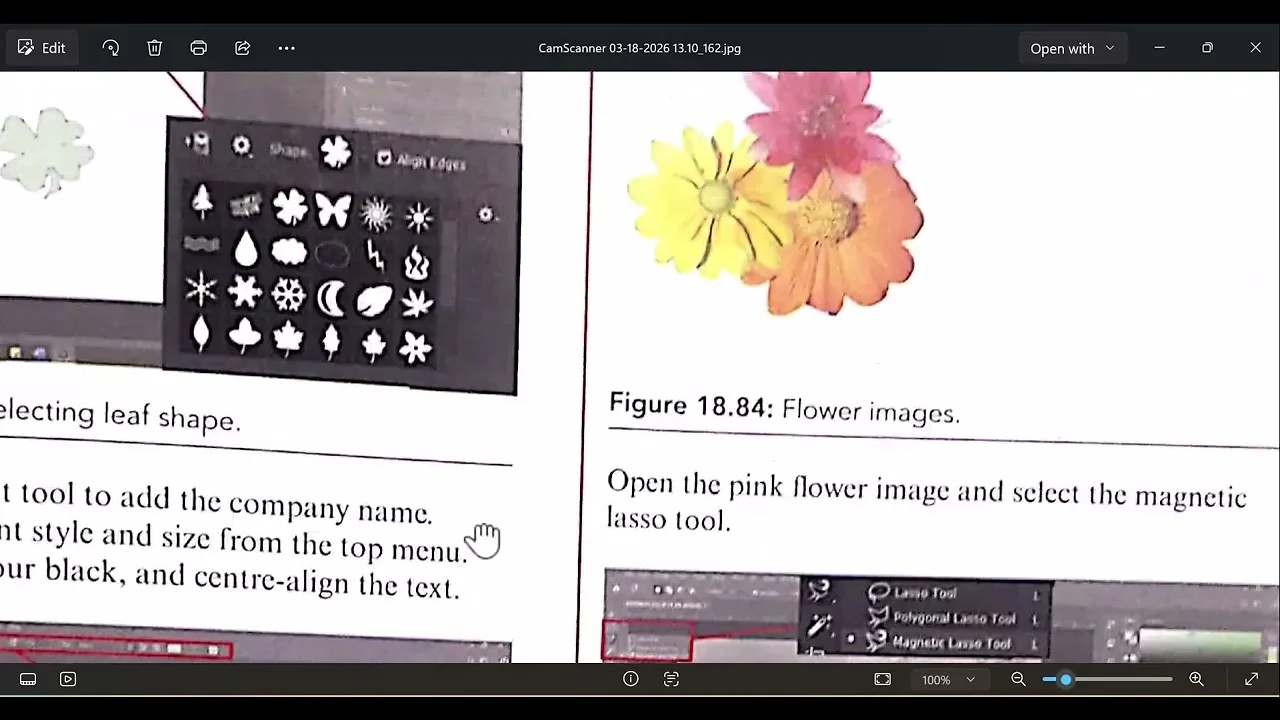
This lesson covers the final work examples from pages 424–426. The first example walks through creating a logo for 'Plant Horizons' in Adobe Photoshop, while the second example guides you through removing backgrounds from flower images using the magnetic lasso tool.
Setting Up the Document and Creating the Logo ⏱ 0:00
•Open Adobe Photoshop and create a new file via File > New•Set the page width to 12 cm and height to 12 cm (speaker initially said weight 12 and height 8, then changed to width 8 and height 12; final: 12x12)•Set resolution to 72 and choose RGB color mode•For Work Example 18.6, the client 'Plant Horizons' wants a logo•Use the Custom Shape Tool: click the arrow next to the shape symbol and select 'Nature' from options, then choose a shade of green•Speaker's version lacks 'Nature', so tries 'Leaves' and 'Flowers'; selects a flower shape•Draw the shape; remove stroke by setting stroke to 'none' or 0 pt•Use the Type Tool (Horizontal Type Tool) to add 'Plant Horizons' in black, size 12•Duplicate the text layer by right-clicking and selecting 'Duplicate Layer', rename to 'Horizon Zone', and move it down with the arrow key•Save the logo: File > Save As, choose Desktop, name it 'logo', select TIFF or JPEGPreparation and Merging for Saving ⏱ 8:51
•If saving as JPEG, first merge visible layers: go to Layer > Merge Visible•Then save as JPEG with quality 12 (large file size)•The file is saved on the desktopWork Example 18.7: Removing Background from Flower Images ⏱ 9:54
•Planet Horizon wants a background image for their website; create from a flower image with background•Open the pink flower image and select the Magnetic Lasso Tool•Drag the tool around the image; click left mouse button to set points•Copy the selection (Edit > Copy), create a new file: 1000 pixels by 1000 pixels, 72 resolution, RGB color•Paste the image into the new file; the white background will not be included•Repeat for two more flower images•Export as GIFKey Takeaways
•Create a new Photoshop document with width 12 cm, height 12 cm, resolution 72, RGB color.•Use the Custom Shape Tool to draw a green flower shape; remove the stroke by setting it to none or 0 pt.•Add text 'Plant Horizons' in black, size 12, then duplicate the layer and move it down to create a second text.•For background removal, use the Magnetic Lasso Tool to select the flower, copy it, and paste into a new 1000x1000 pixel document, then save as GIF.Conclusion
This lesson completes the Photoshop chapter with two work examples. The first demonstrates creating a logo for Plant Horizons, and the second shows how to remove backgrounds from flower images using the Magnetic Lasso Tool.