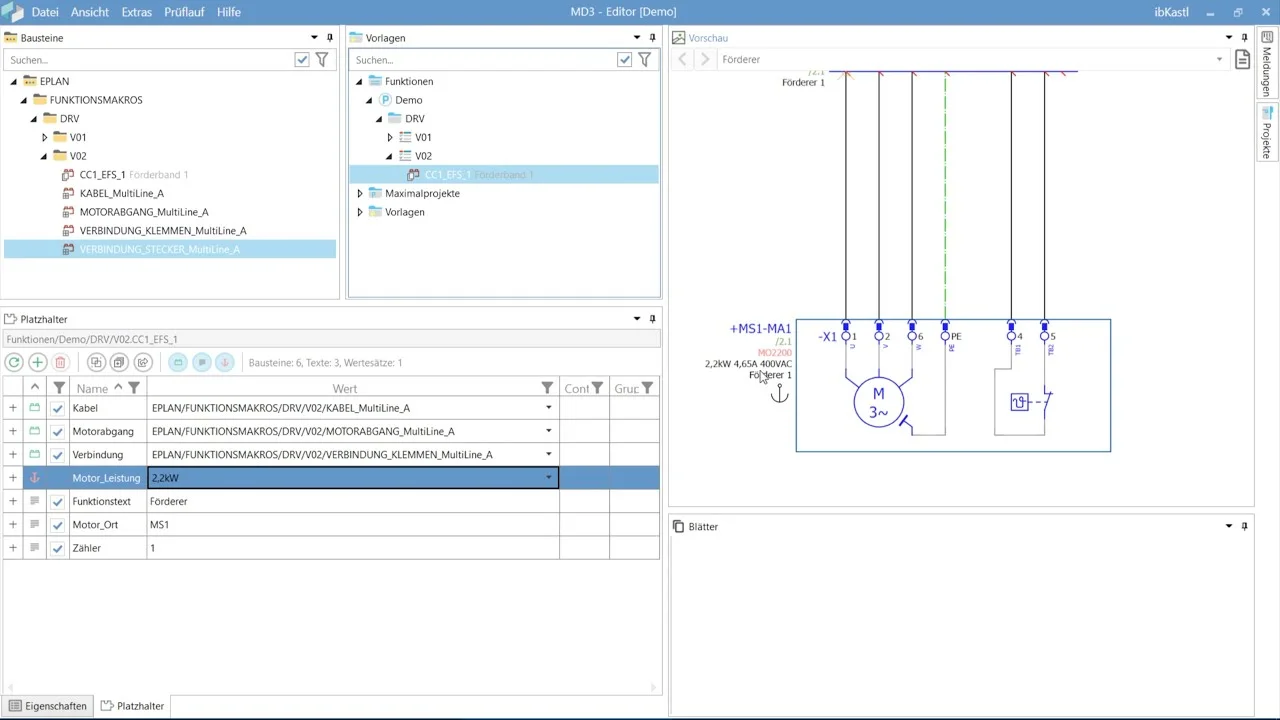
This video demonstrates how to define placeholders in MD3 using EPLAN, covering manual and automated creation of component and text placeholders to make macros more flexible.
Creating Manual Placeholders in the Placeholder Navigator ⏱ 0:00
•Assemble the existing macro as in EPLAN, using a page macro placed in functional variant V1.•Switch to the placeholder navigator to add manual component placeholders.•Assign window macros to these placeholders, including connection macros.•Use the preview to see changes when a plug or terminal is selected.Building a Generic Version with the MD3 Tool ⏱ 1:06
•Switch to EPLAN and create version 2 of the macro for a more generic setup.•Use the MD3 tool to adopt the position of the motor outlet's insertion point.•Define a component placeholder 'Socket' and insert it into the page macro at the same position.•Repeat for cables, placing the socket in the motor outlet.•Repeat for the connection of terminals or plugs.•With the Makro tool, automatically set the paths for the page macro and window macros via the project structure.•Create the macro and update the master data in MD3.•The new components are imported and can be used in functional variants.Defining Text and Value Set Placeholders ⏱ 4:56
•In the functional variant, the motor outlet is already defined as a socket and can be added via drag & drop.•Update placeholders; the two sockets for the cable and the connection appear in the placeholder navigator.•For recurring texts, define text placeholders in EPLAN.•Example: a function text placeholder for the page description.•Another function text placeholder can include a counter, allowing nesting of multiple text placeholders.•Text placeholders can also be used in the cable and in the terminal/plug.•An EPLAN value set is the simplest placeholder: only the name needs to be filled via the MD3 tools.•Create macros and update the MD3 placeholder navigator to make the value set available; changes are immediately visible.Key Takeaways
•Manual component placeholders are added in the placeholder navigator and assigned to window macros.•The MD3 tool automates setting the paths for page and window macros via the project structure.•Text placeholders can be defined for recurring texts and can include counters, allowing nesting.•The EPLAN value set placeholder only requires a name via the MD3 tools.Conclusion
By defining component, text, and value set placeholders, macros become more generic and easier to reuse across functional variants, with changes reflected immediately in the preview.